Filter builder
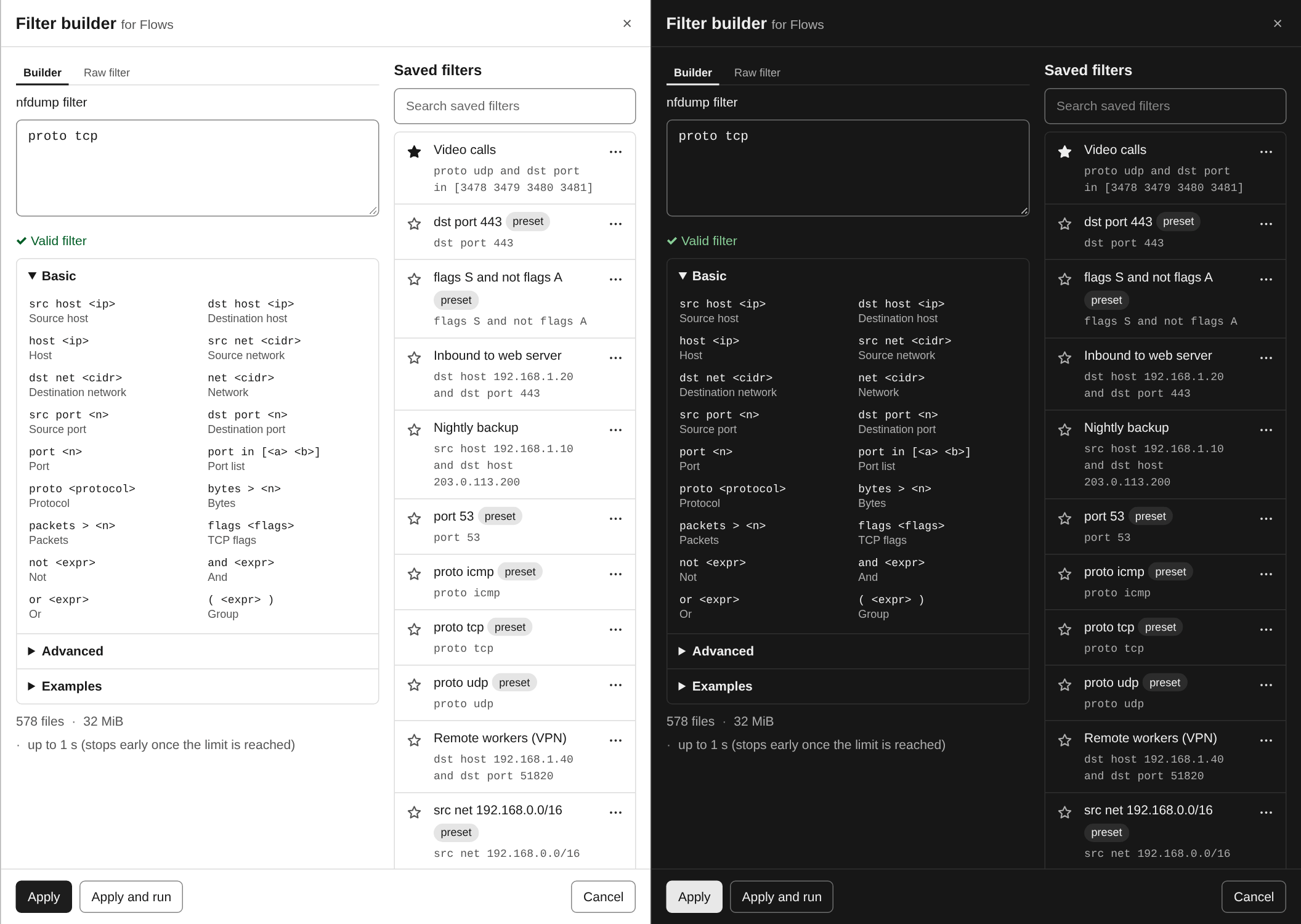
Every nfdump filter field has two buttons under it, Builder and Saved. Both open the filter builder, a drawer over the page that edits that field: the filter of a filtered graph on Overview, of Top Talkers, Flows or Conversations, or the traffic filter of an alert rule. Its title says which one, e.g. Filter builder for Flows.
Writing a filter
The Builder tab has the filter text on top and a reference below it:
- Basic and Advanced list the fields and operators nfdump understands,
such as
src host <ip>,dst port <n>,proto <protocol>,net <cidr>,bytes > <n>orflags <flags>, each with a short description. Click one to insert it at the cursor. - Examples are complete filters for common questions, from Web traffic and DNS to TCP SYN without ACK. Click one to insert it.
- While you type, a list suggests the keywords that match the word at the cursor. Arrow up and Arrow down move through it, Enter or Tab takes a suggestion, Escape closes the list.
The words in angle brackets are placeholders. The first one is selected after inserting, so typing replaces it, and Tab selects the next one.
The Raw filter tab is a larger text area for long filters. Several lines are
one filter, and # starts a comment that runs to the end of the line.
Under the text, the filter is checked against nfdump itself a moment after you stop typing: Valid filter, or nfdump’s error message. When the builder edits a query, the drawer also shows that query’s estimate for the current range.
Applying
Apply writes the text into the field the drawer was opened for and closes it. Apply and run does the same and presses that page’s Run; an alert rule has no Run, so there the button is missing. Cancel, Escape or the close button leave the field as it was. The drawer keeps what you typed, though: open it again for the same field and it says Unapplied draft restored, with Discard draft to start from the field’s text instead.
Saved filters
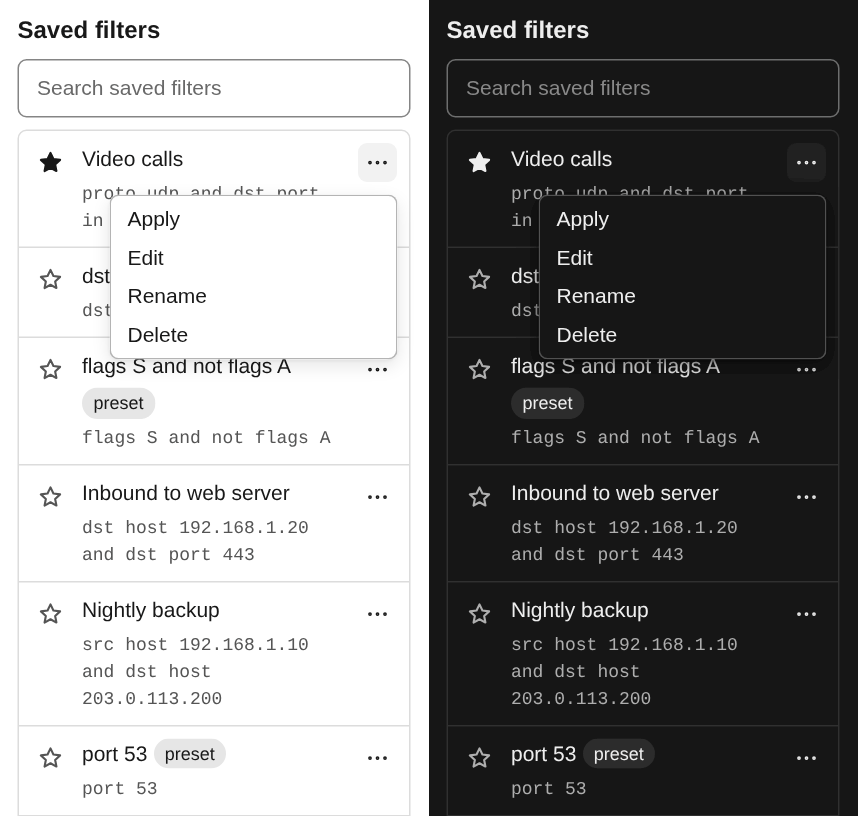
The right-hand side of the drawer lists the saved filters. The list lives on the server, in the SQLite store, so everyone who uses this nfsen-ng instance sees the same filters in every browser.
- Search narrows the list by name and expression.
- The star in front of a filter keeps it at the top: starred filters come first, then the ones used most recently.
- Each filter’s menu offers Apply (load it into the editor, from where the drawer’s Apply or Apply and run takes it into the field), Edit (load it into the editor to change it; Save changes then updates the saved filter), Rename (type the new name, Enter saves, Escape cancels) and Delete.
- Save current filter stores the text in the editor under the name you type, or under the filter itself if you leave the name empty. Each expression is saved once: saving one that differs only in spaces says Already saved as and names the filter you have.
Filters marked preset came from the deployment (NFSEN_FILTERS or
settings.php) or from the old Filter presets list in Settings. They behave
like any other saved filter, and a preset you delete stays deleted.
Filters from before the upgrade
Earlier versions kept saved filters in each browser. The first time a browser opens this version, the drawer imports that browser’s list into the saved filters, once; if the import fails, the browser tries again on the next load. The filter presets that were saved in Settings are moved into the list the first time the server reads it. See Upgrading.